





When we talk about authentication methods and how to configure them, it’s important to first understand what they actually mean for the organization.
Authentication methods define how users can verify their identity in Microsoft Entra ID. Traditionally this meant MFA methods “in addition to the password”, but today several methods can also replace the password entirely (for example passkeys and Windows Hello for Business).
In other words, authentication methods control what options users have available when signing in or performing MFA.
Today, you can configure the following methods:
- Passkeys (FIDO2)
- Microsoft Authenticator
- SMS
- Temporary Access Pass (TAP)
- Hardware OATH tokens (Preview)
- Software OATH tokens
- Voice call
- Email OTP
- Certificate-based authentication
- QR code
Migration from legacy MFA
Authentication Methods is the modern replacement for the legacy MFA and SSPR policies, which were deprecated after September 30, 2025.
All new tenants use Authentication Methods by default, while older tenants must explicitly migrate.
Even though the legacy configuration has been deprecated, it is still respected by the authentication flow as long as the migration is not completed.
This means you can end up in situations where:
- Nothing (or very little) is configured in Authentication Methods
- But users are still able to register and use methods like Microsoft Authenticator
This happens because Entra ID will still evaluate the legacy configuration in parallel.
At the same time:
- The legacy GUI is no longer available
- You cannot easily see or manage what is allowed
Therefore, from both a security and governance perspective, it is critical to complete the migration and move fully to Authentication Methods.
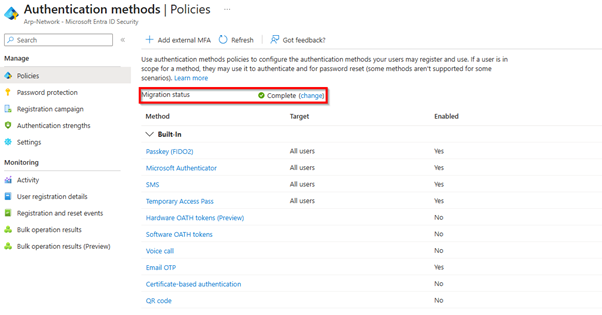
The picture indicate the migration status.
Authentication methods and Conditional Access
One important detail is how authentication methods interact with Conditional Access.
If you enforce:
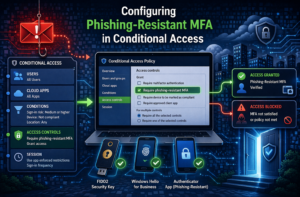
- Phishing-resistant MFA
But only allow:
- SMS or Authenticator (standard MFA)
Then users may not be able to sign in at all.
This is because phishing-resistant policies require stronger methods such as:
- Passkeys (FIDO2)
- Windows Hello for Business
- Certificate-based authentication
Onboarding users (important gotcha)
A common problem appears when enforcing strong authentication methods for new users.
If a user has:
- No authentication methods registered
- And a policy requires phishing-resistant MFA
Then the user cannot sign in at all.
To handle this, you need to:
- Either exclude new users temporarily from the policy
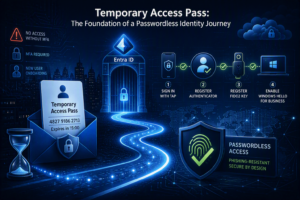
- Or issue a Temporary Access Pass (TAP)
TAP can be used to bootstrap the user so they can sign in and register their actual methods.
Choosing the right methods
From a security perspective, not all authentication methods are equal.
Personally, I would not recommend relying on SMS, due to:
- SIM swapping
- Social engineering risks
However, during migration, it is often necessary to allow SMS temporarily until users have registered stronger methods.
For new deployments, the focus should be on moving users to stronger authentication options instead of enabling weaker ones “just because they are easy”.
Recommended approach
In most modern environments, the methods you should focus on are:
- Passkeys (FIDO2)
- Microsoft Authenticator
- Temporary Access Pass (for onboarding and recovery)
Other methods should only be used:
- As fallback
- Or during transition phases
Windows Hello for Business
Windows Hello for Business is not enabled directly in Authentication Methods in the same way as other methods.
Instead:
- It is configured through device management (typically Intune)
- And evaluated through Conditional Access policies
If configured correctly, Windows Hello for Business is treated as a phishing-resistant authentication method and will satisfy Conditional Access policies requiring strong authentication.
✅ Summary
Authentication Methods is no longer just a replacement for legacy MFA — it is the foundation for modern authentication in Entra ID.
To use it correctly, you need to:
- Complete the migration from legacy policies
- Define which methods users are allowed to use
- Align those methods with Conditional Access
- Ensure onboarding (TAP / exclusions) is handled properly
Configuration considerations
The last thing before we end the talk about authentication methods is to dig a little deeper into the configuration itself.
Let’s focus on Passkeys (FIDO2) and Microsoft Authenticator, as these are the methods where you actually have some meaningful configuration options.
Passkeys (FIDO2)
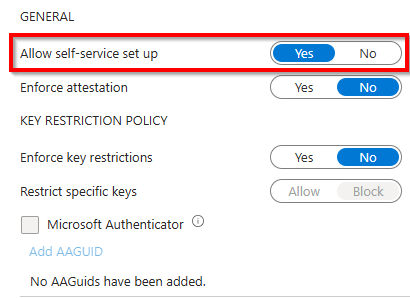
For passkeys, you have the following options:
- Allow self-service setup
- Enforce attestation
- Enforce key restrictions
- Restrict specific keys
These settings are important to understand, as the outcome might not be what you expect if they are configured incorrectly.
For most environments, the recommended approach is to:
- Enable self-service setup
- Leave the remaining settings at their default values
This allows users to register passkeys freely, without adding unnecessary complexity.
When should you configure the advanced options?
In more security-focused environments, you can harden the configuration further.
For example:
- Enforce attestation to ensure keys are verified
- Restrict allowed keys to specific vendors or types
This makes it possible to tightly control which hardware is allowed in your environment.
However, this level of restriction is not commonly used in standard deployments, as it adds operational overhead and reduces flexibility for users.
General recommendation
Start simple:
- Enable passkeys with self-service
- Monitor adoption
- Only introduce restrictions if you have a clear security requirement
Microsoft Authenticator
For Microsoft Authenticator, you have the following options:
- Allow the use of Microsoft Authenticator OTP
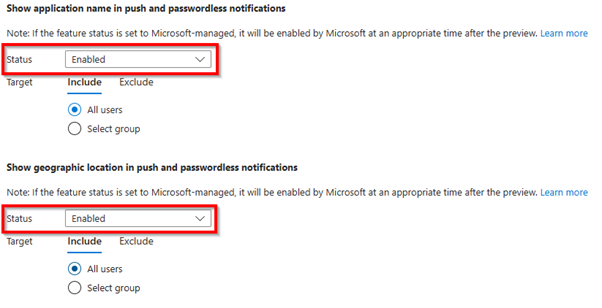
- Show application name in push and passwordless notifications
- Show geographic location in push and passwordless notifications
- Microsoft Authenticator on companion applications
These settings are important to understand, even though by default they are configured as Microsoft-managed.
Recommended configuration
My approach to these settings would be the following:
Push notification details
Change the following from Microsoft-managed to Enabled:
- Show application name in push and passwordless notifications
- Show geographic location in push and passwordless notifications
This ensures:
- Users get better context during login
- Reduced risk of MFA fatigue and accidental approvals
- Consistent behaviour across the tenant
Authenticator OTP
The option:
- Allow the use of Microsoft Authenticator OTP
Controls whether users can use:
- 6-digit verification codes
- Instead of push notifications
My recommendation:
- In standard environments → leave this enabled
- Provides a fallback if push notifications fail
- In high-security environments → consider disabling it
- Forces push + number matching
- Reduces phishing scenarios where users type codes into fake portals
Companion applications
The option:
- Microsoft Authenticator on companion applications
Allows usage of:
- Companion devices (for example smartwatches)
In most environments:
- This can be left enabled
- But highly restricted environments may choose to disable it
General recommendation
Start with:
- Push notifications with application + location enabled
- OTP as fallback
Then harden further if required:
- Disable OTP
- Restrict companion usage