


Introduction
Most organisations deploy Temporary Access Pass (TAP) for a single purpose: helping users regain access to their accounts.
While this is an important use case, TAP was designed to be much more than a recovery mechanism. When used correctly, TAP can become the foundation for onboarding users into phishing-resistant authentication and passwordless sign-in experiences.
In this article, we’ll explore what TAP is, how it works, and how organisations can use it to enable a seamless and secure identity journey.
Table of Contents
ToggleWhat is Temporary Access Pass?
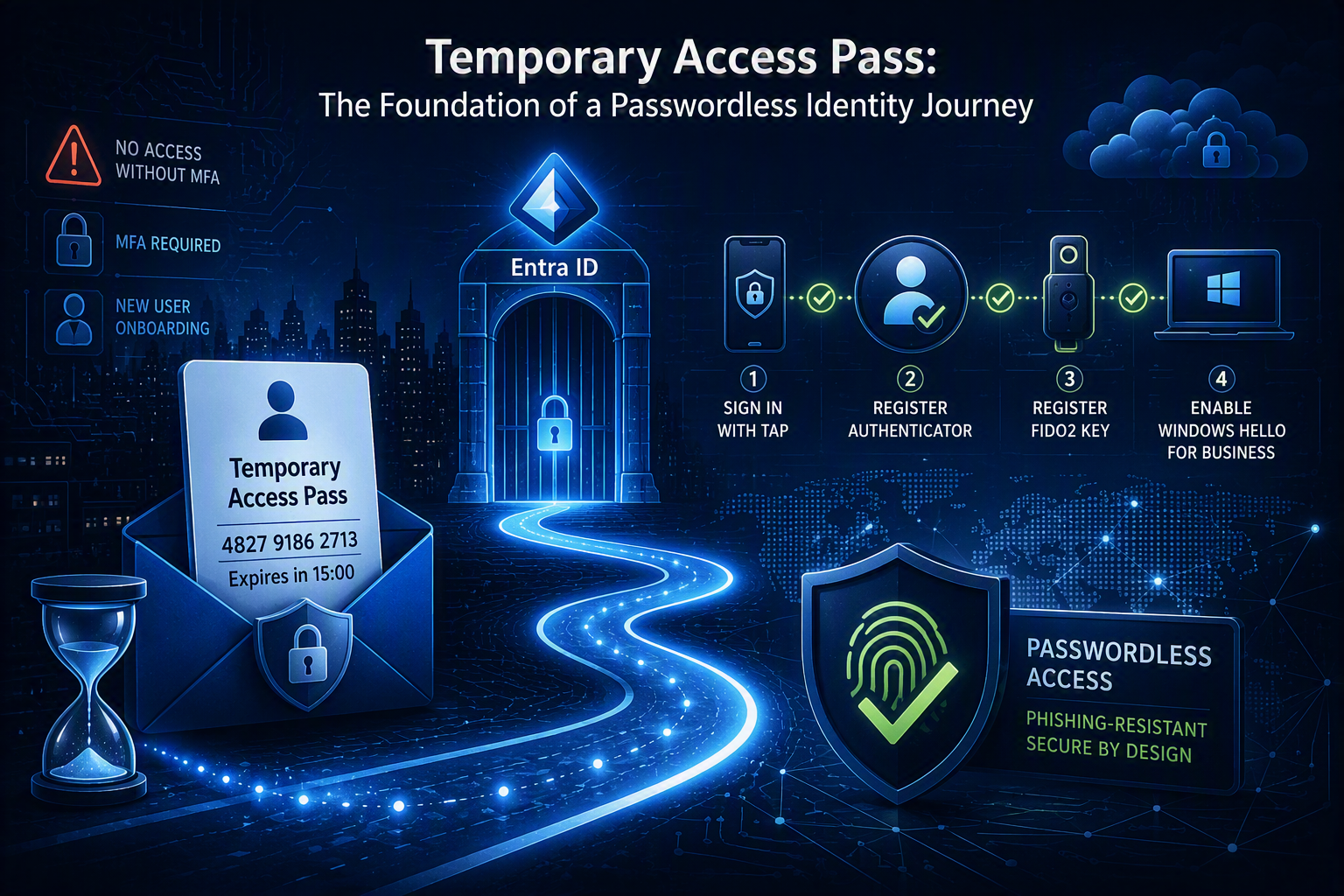
Temporary Access Pass (TAP) is a passwordless authentication method in Microsoft Entra ID that provides users with a time-limited passcode that can be used to sign in and register additional authentication methods.
Unlike traditional credentials, a TAP is designed to be temporary. It can be configured as either a one-time use credential or a multi-use credential with a defined lifetime, making it ideal for onboarding, recovery, and passwordless deployment scenarios.
TAP is part of the Authentication Methods framework in Microsoft Entra ID and acts as a bootstrap mechanism for stronger authentication methods. Instead of being the end goal, it serves as a secure starting point that allows users to enroll methods such as Microsoft Authenticator, FIDO2 security keys, passkeys, or Windows Hello for Business.
This ability to bridge the gap between initial account access and phishing-resistant authentication is what makes TAP so valuable. Without a bootstrap method, organisations often face a chicken-and-egg problem where users are required to perform MFA before they have any authentication methods registered.
TAP also integrates with Authentication Strengths in Conditional Access. While a Temporary Access Pass itself is not typically the authentication method organisations want users relying on long term, it enables users to register methods that satisfy stronger authentication requirements, including phishing-resistant MFA. In this way, TAP often becomes the first step in a broader passwordless identity journey.
🔐 Key Takeaway
Think of Temporary Access Pass as a secure bridge between account creation and strong authentication. Its real value is not in the pass itself, but in the authentication journey it enables.
Why Microsoft Introduced TAP
At first glance, Temporary Access Pass may appear to be a simple account recovery feature. However, TAP was introduced to solve a much broader challenge that organisations face when implementing modern authentication and passwordless sign-in experiences.
Consider a new employee joining the organisation. Before they can access company resources, they may be required to register Microsoft Authenticator, a FIDO2 security key, or another authentication method that satisfies the organisation’s MFA requirements.
The challenge is that registering these methods often requires the user to sign in first. At the same time, the organisation may already require MFA for sign-in. This creates a classic chicken-and-egg problem: the user needs an authentication method to sign in, but they need to sign in to register an authentication method.
The same challenge exists when organisations move towards passwordless authentication. Methods such as Windows Hello for Business, FIDO2 security keys, and passkeys require an initial onboarding process before they can be used as a primary sign-in method. Without a secure bootstrap mechanism, administrators are often forced to rely on temporary passwords, MFA exclusions, or manual helpdesk intervention.
Recovery scenarios present a similar challenge. When users lose access to their registered authentication methods, organisations need a secure way to re-establish trust. While helpdesk involvement is often still required, relying solely on password resets or MFA exemptions can introduce unnecessary risk and operational complexity. Temporary Access Pass provides a controlled bootstrap mechanism that allows users to regain access and register new authentication methods without creating permanent exceptions to security policies.
Temporary Access Pass was Microsoft’s answer to these challenges.
By providing a secure, time-limited authentication method, TAP allows users to access their account, register new authentication methods, and continue their authentication journey without requiring insecure workarounds or permanent exceptions to security policies.
Rather than being just another authentication method, TAP acts as a secure bridge between identity creation, authentication method registration, account recovery, and passwordless adoption.
🔐 Key Takeaway
Temporary Access Pass was not introduced to replace existing authentication methods. It was introduced to solve the onboarding and recovery challenges that occur before stronger authentication methods can be used.
Common Use Cases
Most organisations are already using Temporary Access Pass today, often without realising its full potential. While account recovery is the use case most administrators are familiar with, TAP can support the entire authentication lifecycle, from onboarding new users to enabling passwordless authentication and securing privileged accounts.
Let’s look at some of the most common scenarios where TAP adds value.
New Employee Onboarding
One of the most powerful use cases for TAP is user onboarding.
When a new employee joins the organisation, they often need to sign in for the first time while also being required to register one or more authentication methods. Depending on the organisation’s Conditional Access policies, registration may be blocked until certain security requirements have been met, creating an onboarding challenge.
By issuing a Temporary Access Pass, administrators can provide a secure starting point that allows the user to access their account and complete the registration process without requiring MFA exemptions or temporary security exceptions.
Common onboarding scenarios include:
- First sign-in to Microsoft 365
- Registering Microsoft Authenticator
- Registering a FIDO2 security key
- Registering a passkey
- Enrolling Windows Hello for Business
Transitioning to Passwordless Authentication
Many organisations view TAP as a recovery tool, but it can play an equally important role when transitioning users to passwordless authentication.
Authentication methods such as FIDO2 security keys, passkeys, and Windows Hello for Business do not appear automatically. Users must first register these methods before they can be used as primary authentication factors.
This is where TAP acts as the enabler.
Rather than treating TAP as the destination, think of it as the secure bridge that helps users move from password-based authentication to stronger, phishing-resistant methods.
Common passwordless deployment scenarios include:
- Rolling out FIDO2 security keys
- Introducing passkeys
- Deploying Windows Hello for Business
- Migrating away from passwords as the primary sign-in method
Account Recovery
Account recovery is likely the use case most administrators associate with Temporary Access Pass.
If a user loses their phone, receives a replacement device, breaks a security key, or otherwise loses access to their registered authentication methods, a TAP can be issued to securely re-establish access to the account.
While this scenario often still involves helpdesk or administrative assistance, TAP provides a controlled and time-limited way to recover access without weakening existing security controls.
Common recovery scenarios include:
- Lost or stolen mobile device
- Replacement mobile device
- Lost or damaged FIDO2 security key
- Helpdesk-assisted authentication recovery
Administrator and Privileged Identity Onboarding
Temporary Access Pass can be particularly valuable for privileged accounts and administrative identities.
Many organisations require administrators to use phishing-resistant authentication methods and avoid relying on passwords wherever possible. TAP provides a secure way to onboard these accounts while maintaining strong security controls throughout the enrollment process.
Examples include:
- New administrator accounts
- Privileged access workstations (PAWs)
- Administrative account onboarding
- Registering phishing-resistant authentication methods
Building a Passwordless User Journey
When discussing passwordless authentication, the focus is often placed on the end result: signing in with Windows Hello for Business, a FIDO2 security key, or a passkey. What is often overlooked is how users get there in the first place.
This is where Temporary Access Pass becomes one of the most important, yet underutilised, authentication methods in Microsoft Entra ID.
Without TAP, organisations often find themselves relying on temporary passwords, MFA exclusions, or manual support processes to onboard users into stronger authentication methods. While these approaches may work, they introduce additional complexity and can create gaps in the overall security model.
With TAP, organisations can establish a secure and structured onboarding process that guides users towards phishing-resistant authentication from day one.
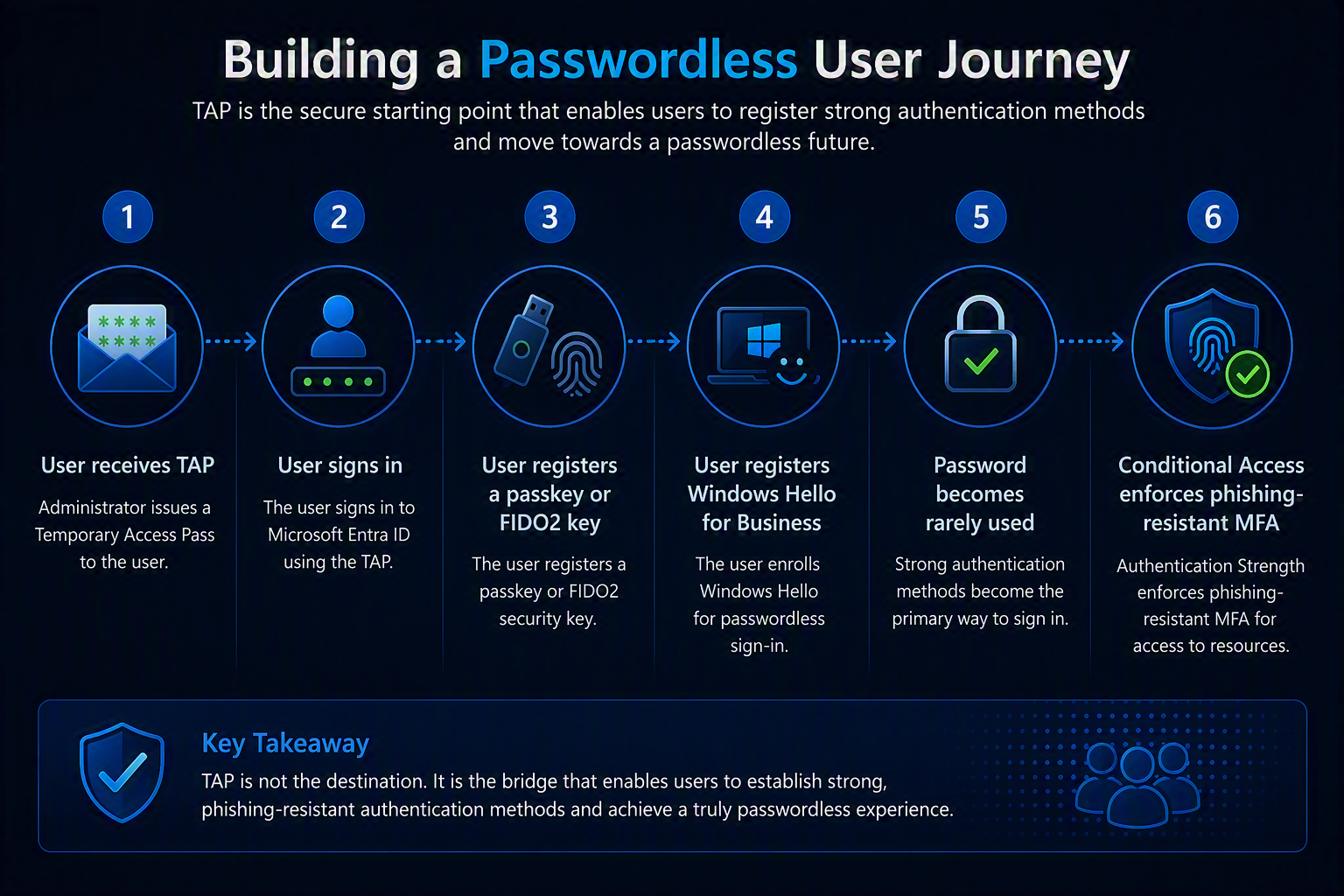
A typical passwordless user journey might look like this:
Step 1: User Receives a Temporary Access Pass
The user is provided with a time-limited TAP by the helpdesk or identity team.
Because the pass is temporary and can be configured for a single use, it provides a secure way to grant initial access without relying on a permanent password reset or creating exceptions to security policies.
Step 2: Initial Sign-In
The user signs in using the Temporary Access Pass.
At this stage, the goal is not for the user to continue using TAP as their authentication method. Instead, TAP serves as a secure bootstrap mechanism that allows the user to access authentication registration portals and begin enrolling stronger authentication methods.
Step 3: Register Strong Authentication Methods
Once signed in, the user can register one or more authentication methods, such as:
Microsoft Authenticator
FIDO2 Security Keys
Passkeys
Windows Hello for Business
This is where the value of TAP becomes clear. Rather than weakening security to simplify onboarding, organisations can use TAP to enforce a secure registration process from the very beginning.
Step 4: Transition to Passwordless Authentication
After the required authentication methods have been registered, the user can begin authenticating using phishing-resistant methods instead of relying on passwords.
For example, a user may sign in to their Windows device using Windows Hello for Business and access cloud applications using the same strong authentication credentials.
The password remains in the background but is no longer part of the user’s daily experience.
Step 5: Enforce Strong Authentication with Conditional Access
As organisations mature their identity strategy, Conditional Access policies and Authentication Strengths can be used to require phishing-resistant authentication for selected applications or user groups.
At this point, TAP has completed its job.
The user has successfully transitioned from initial account access to strong, phishing-resistant authentication without requiring security exceptions, temporary passwords, or lengthy helpdesk involvement.
Configuration Considerations
Temporary Access Pass is relatively simple to configure, but a few design decisions can significantly impact both security and user experience. In my experience, the most important considerations are how users will consume the TAP, how long it should remain valid, and who should be allowed to issue it.
One-Time Use vs Multi-Use
One of the first configuration decisions organisations must make is whether a Temporary Access Pass should be configured as a one-time or multi-use credential.
There is no universal answer, as the best option depends on the scenario being supported.
Multi-Use for Onboarding and Enrollment
In my experience, onboarding scenarios are where multi-use TAPs provide the most value.
A new employee often needs to complete several authentication-related tasks before they are fully operational. This may include signing in to their Windows device, enrolling Windows Hello for Business, registering Microsoft Authenticator, adding a passkey, or setting up applications such as Outlook and Teams on a mobile device.
Since these activities frequently occur across multiple sign-ins and multiple devices, a time-limited multi-use TAP can provide a much smoother user experience while still maintaining strong security controls.
One-Time Use for Recovery
Recovery scenarios are different.
If a user has lost access to their phone, replaced a device, or needs to register a replacement authentication method, the objective is typically to regain access and complete a specific task.
In these situations, a one-time TAP often provides the right balance between usability and security. Once the user has successfully authenticated and registered their new authentication method, there is usually little value in leaving the TAP available for additional sign-ins.
🔑 Key Takeaway
For most organisations, the decision is surprisingly simple: use multi-use TAPs for onboarding and enrolment journeys, and one-time TAPs for recovery scenarios.
Lifetime and Expiration
The lifetime of a Temporary Access Pass should generally align with the scenario it supports.
For recovery scenarios, where a one-time TAP is commonly used, short validity periods often make sense. The user typically needs enough time to regain access and register a replacement authentication method, after which the TAP has served its purpose.
For onboarding and enrolment scenarios, organisations may wish to provide users with more time. New starters often complete setup activities over multiple hours or even several days, especially when devices, security keys, mobile phones, and applications are involved.
The goal should be to provide enough time for users to complete their onboarding journey without keeping temporary credentials active longer than necessary.
✅ Best Practice
Match the TAP lifetime to the user journey. Recovery scenarios typically benefit from shorter lifetimes, while onboarding and enrolment scenarios often require a longer validity period to support multiple devices and registration activities.
Who Can Issue a TAP?
One aspect that is often overlooked is that the ability to issue a Temporary Access Pass is controlled through Microsoft Entra role assignments.
Many organisations delegate password resets and user management to their helpdesk teams, but these permissions do not automatically grant the ability to issue TAPs. Microsoft treats TAP as an authentication method, meaning that dedicated authentication-related roles are required.
The following roles can create Temporary Access Passes:
- Authentication Administrator
- Privileged Authentication Administrator
- Global Administrator
From a least-privilege perspective, the Authentication Administrator role is often the preferred choice for helpdesk or identity teams responsible for onboarding and recovery processes.
🔐 Common Misunderstanding
A Temporary Access Pass is not a password reset. Because TAP is an authentication method, the ability to create one requires authentication-related administrator roles rather than traditional user administration permissions.
Common Misunderstandings
Despite being available for several years, Temporary Access Pass is still frequently misunderstood. In many environments, it is deployed only for a single use case, while some of its most valuable capabilities remain largely unexplored.
Let’s look at a few common misconceptions.
“TAP is only for recovery”
Not necessarily.
Account recovery is probably the scenario most administrators associate with Temporary Access Pass, especially when users lose access to a mobile device or need to replace an existing authentication method.
However, in my experience, TAP often delivers the greatest value during onboarding and authentication method enrollment. It provides a secure way for new users to access their account and register the authentication methods that will ultimately replace the TAP itself.
For many organisations, onboarding users into strong authentication methods is a far more frequent use case than account recovery.
“TAP replaces MFA”
False.
A Temporary Access Pass is not intended to replace MFA, nor is it designed to become a user’s primary authentication method.
Instead, TAP is typically used as a bootstrap mechanism that allows users to register stronger authentication methods such as Microsoft Authenticator, Windows Hello for Business, passkeys, or FIDO2 security keys.
In other words, TAP is often the mechanism that enables MFA rather than replacing it.
“TAP is only useful for passwordless deployments”
False.
While TAP plays an important role in passwordless journeys, its value extends far beyond organisations pursuing passwordless authentication.
Many organisations use Temporary Access Pass simply to streamline MFA enrollment, onboard new employees, or help users recover access to accounts without introducing security exceptions.
Even if your organisation has no plans to deploy passkeys, FIDO2 security keys, or Windows Hello for Business, TAP can still simplify authentication method registration and recovery processes.
The real value of TAP is not tied to passwordless authentication. It lies in providing a secure and controlled way to establish trust when users need to register or recover authentication methods.
💡 Final Thought
Organizations that view Temporary Access Pass purely as a recovery tool are often missing its greatest strength. TAP is most powerful when it becomes part of the user lifecycle, supporting onboarding, enrollment, recovery, and the journey towards stronger authentication methods.
Configuration guideline
While understanding the purpose and use cases of Temporary Access Pass is important, administrators also need to know where the feature is configured and how it fits into Microsoft Entra ID.
The implementation of TAP can be divided into three high-level steps:
- Enable Temporary Access Pass as an authentication method.
- Configure the Temporary Access Pass policy.
- Issue Temporary Access Passes to users when required.
Step 1: Enable Temporary Access Pass
Before users can use Temporary Access Pass, the authentication method must be enabled within Microsoft Entra ID.

Navigate to Microsoft Entra Admin Center
Go to the Entra ID section → Authentication methods
Select Temporary Access Pass
Enable the policy
Choose which users or groups are allowed to use it
Step 2: Configure the TAP Policy
Once enabled, organizations can configure how Temporary Access Passes behave.

This is where administrators define:
Default lifetime
Minimum and maximum lifetime
One-time or multi-use behavior
Which users can receive TAPs
Rather than focusing on individual settings, administrators should align these configurations with their intended use cases. As discussed earlier in this article, onboarding and enrollment scenarios often benefit from time-limited multi-use TAPs, while recovery scenarios commonly align with one-time use TAPs.
But be aware, multiple policies is not supported yet at least, so if you have scenarios in your org, where multi-use TAPs could be beneficial, then don’t require one-time use, you can still choose one-time use when created the TAP for the user.
Step 3: Create a Temporary Access Pass
When the policy has been configured, administrators can issue TAPs directly to users.

To create a TAP:
Open the target user in Microsoft Entra ID.
Select Authentication methods.
Choose Add authentication method.
Select Temporary Access Pass.
Configure activation time, lifetime, and usage options.
Generate and securely communicate the TAP to the user.
Once created, the TAP can be used immediately or at a configured future activation time.
🔑 Key Takeaway
Configuring TAP is relatively straightforward. The challenge is not the technical implementation itself, but designing a Temporary Access Pass experience that supports secure onboarding, recovery, and authentication method enrollment.
