

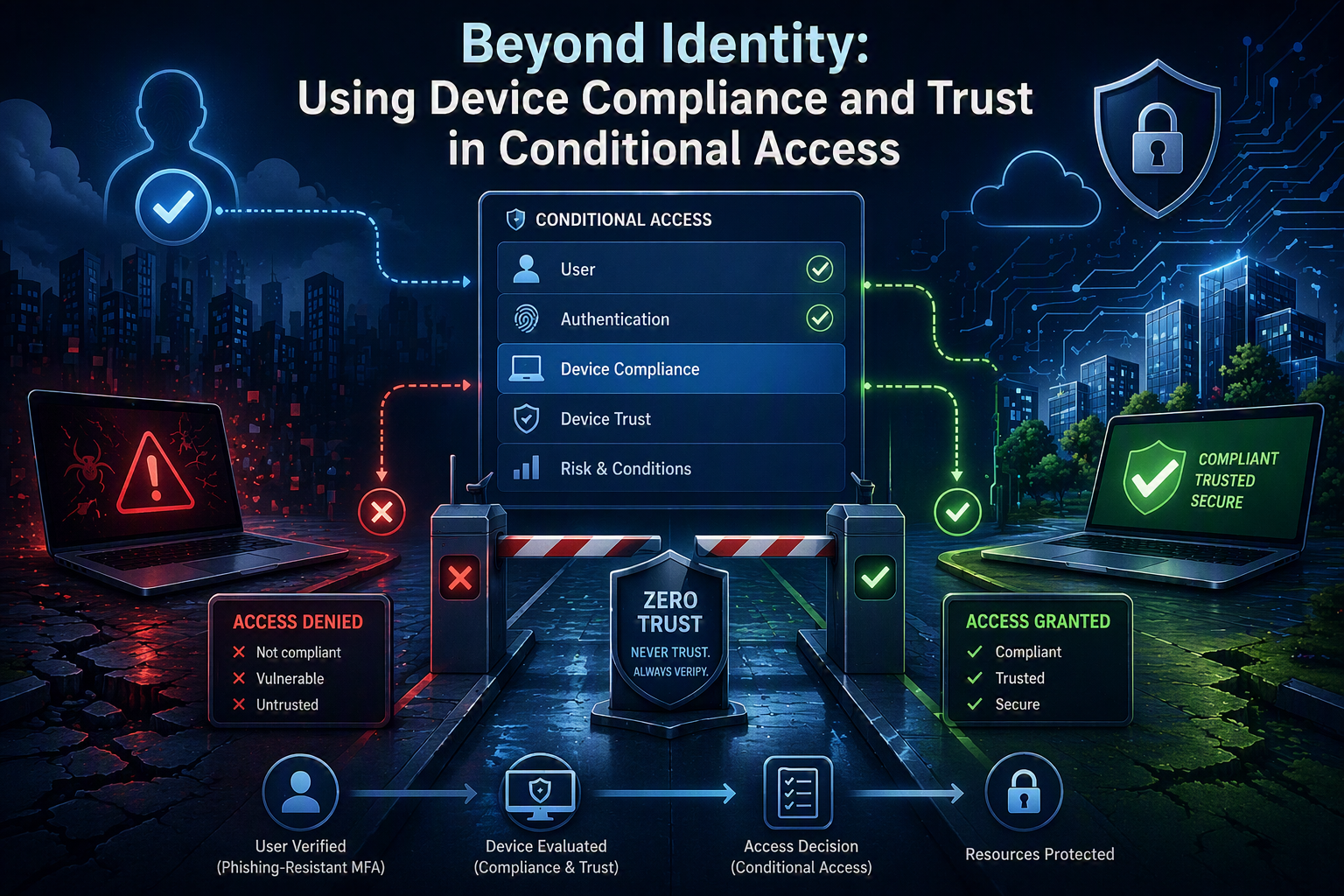
Introduction
In the previous article, we looked at how authentication strengths and Conditional Access can be used to enforce phishing-resistant MFA and strengthen identity verification.
But in a Zero Trust model, verifying the identity is only part of the equation.
A successfully authenticated identity should not automatically result in access being granted. The principle of never trust, always verify applies equally to the device being used. Before a device is trusted, it should be evaluated against the organisation’s security and compliance requirements.
In this article, we’ll explore how Microsoft Entra Conditional Access can incorporate device compliance and device trust into the access decision, ensuring that access is granted only when both the identity and the device meet the required security standards.
We have just verified the user using phishing-resistant MFA or another strong authentication method. Based on that successful sign-in, our Conditional Access policy may be ready to grant access to the requested corporate resource.
But before we do, we should pause and ask an important question:
What is the user signing in from?
While we may now trust the identity, we have not yet validated the device. Is it managed? Is it compliant with our security requirements? Could it be vulnerable, misconfigured, or even compromised?
In a Zero Trust model, trusting the user does not automatically mean we should trust the device. The principle of never trust, always verify applies to both. Before granting access, we should verify that the device meets the organisation’s defined security and compliance standards.
This is where device compliance becomes a critical part of the access decision. By evaluating the health and security posture of the device, we can make more informed decisions about whether access should be allowed.
Why is this important?
Because even a strongly protected identity can be put at risk when used from an insecure device. A successfully authenticated user signing in from a vulnerable or compromised device can still lead to a security incident. While we can never guarantee that a device is 100% secure, device compliance helps us establish a baseline of security controls and significantly reduce the overall risk.
Table of Contents
ToggleDefining Device Trust with Intune Compliance Policies
Before device compliance can be used in Conditional Access policies, we first need a way to determine whether a device should be trusted. This is where Microsoft Intune compliance policies come into play.
One of the strengths of Microsoft Entra Conditional Access is its ability to evaluate signals from multiple Microsoft security products when making an access decision. Depending on your requirements, Conditional Access can leverage identity signals from Entra ID, risk signals from Microsoft Defender, and device compliance signals from Intune. In this article, we focus on the latter.
While Intune is often associated with configuration management, application deployment, and device administration, it also provides a powerful compliance framework. Compliance policies allow us to verify that devices meet our organisation’s security requirements before they are granted access to corporate resources.
This is an important distinction. Deploying a configuration does not necessarily mean the configuration is still present or functioning as expected. Compliance policies enable us to continuously validate the security state of a device and use that information as part of our access control decisions.
Device compliance should never be viewed as a replacement for strong authentication. A user may successfully satisfy phishing-resistant MFA requirements, but that alone does not guarantee that the device being used is secure. By combining identity verification with device compliance, we can apply the Zero Trust principle of “never trust, always verify” to both the user and the endpoint.
Intune supports compliance policies across multiple operating systems, including Windows, macOS, iOS/iPadOS, Android, and Linux. For the purposes of this article, however, we will focus on Windows devices.
My preferred approach is to separate compliance checks into three distinct policies:
• A custom Windows Update compliance policy to verify that devices are running supported and up-to-date Windows builds.
• A Microsoft Defender for Endpoint compliance policy to evaluate device risk based on security signals from Defender.
• A general compliance policy containing built-in controls such as BitLocker encryption, password requirements, Secure Boot, and other baseline security settings.
Splitting compliance checks into separate policies makes troubleshooting easier, provides clearer reporting, and helps users understand exactly why a device has become non-compliant. It also allows organisations to adjust individual compliance requirements without affecting the entire compliance framework.
The end result is a clear and measurable definition of what constitutes a trusted device—something we can later use in Conditional Access policies to make more informed access decisions.
Creating the Compliance Policies
With our compliance strategy defined, we can begin building the policies that ultimately determine whether a device should be trusted.
A common mistake is attempting to place every compliance requirement into a single policy. While this may work in smaller environments, it quickly becomes difficult to troubleshoot and maintain as requirements evolve. Separating compliance checks into logical categories provides clearer reporting, simplified administration, and a better user experience when devices become non-compliant.
For this example, we will create three separate compliance policies:
• Windows Update Compliance
• Microsoft Defender for Endpoint Compliance
• General Security Compliance
Together, these policies establish the minimum security requirements a device must satisfy before Conditional Access considers it trustworthy enough to access corporate resources.
Windows Update Compliance
One of the most effective security controls available is keeping operating systems up to date. Devices running unsupported or outdated Windows builds are significantly more likely to be exposed to known vulnerabilities and security weaknesses.
While Intune includes several built-in compliance checks, many organisations also want to validate that devices are running a specific Windows version or have installed the required quality and feature updates. This becomes particularly important when Conditional Access decisions are based on device compliance.
For this reason, I typically implement Windows Update compliance as a custom compliance policy. This provides greater flexibility and allows compliance requirements to align with the organisation’s update strategy and supported Windows lifecycle.
A fantastic implementation of this approach has been documented by Peter van der Woude, who demonstrates how Windows Update status can be incorporated into device compliance by leveraging custom compliance settings. If you haven’t already discovered Peter’s blog, I highly recommend it—he consistently publishes some of the most practical and well-researched Microsoft Intune content available.
Further reading:
Peter van der Woude – Using update status as part of the compliance of Windows devices
Read the article
By incorporating update status into compliance evaluations, organisations can ensure that devices are not only managed and enrolled, but are also running the operating system versions and security updates required to meet corporate security standards.
Microsoft Defender for Endpoint Compliance
Security configuration alone does not always reflect the current health of a device. A fully patched device may still be compromised.
By integrating Intune with Microsoft Defender for Endpoint, compliance decisions can incorporate endpoint risk signals generated by Defender. This enables Conditional Access to respond not only to configuration drift but also to active security threats.
Rather than evaluating dozens of individual security indicators, Intune can simply consume the Defender risk level and mark a device as non-compliant when its risk exceeds the threshold defined by the organisation.
This creates a powerful integration where Defender identifies compromised devices and Conditional Access can immediately limit or block access to corporate resources.
For most organisations, I recommend starting with a Low machine risk threshold. This strikes a good balance between usability and security and ensures that devices identified as potentially compromised can be remediated before regaining access to sensitive resources.
General Security Compliance
The final policy defines the baseline security controls expected on all managed Windows devices.
This policy typically contains built-in compliance settings such as:
• BitLocker encryption
• Secure Boot
• TPM requirements
• Password requirements
• Microsoft Defender Antivirus health
• Device integrity checks
These controls help ensure that fundamental security protections are present before a device is allowed to access sensitive company data.
While the exact requirements vary between organisations, the goal remains the same: establish a minimum security standard that every trusted device must meet.
As a general principle, I recommend focusing compliance policies on security outcomes rather than configuration details. Use compliance to verify that critical protections are present, and use configuration profiles to manage how those protections are deployed.
Defining What a Trusted Device Means
Once these compliance policies are in place, Intune can continuously evaluate device health and security posture. Devices that satisfy all compliance requirements are marked as compliant, while devices that fail one or more checks are marked as non-compliant and can be targeted by Conditional Access controls.
At this point, we have effectively created a measurable definition of device trust. Rather than making access decisions based solely on a successful sign-in, we now have visibility into whether the device is secure, up to date, and assessed as healthy by our security tooling.
In the next section, we will use this compliance state within Conditional Access to ensure that only trusted and healthy devices are granted access to corporate resources.
Using Device Compliance in Conditional Access
Creating compliance policies is only half of the solution. While Intune can continuously evaluate the health and security posture of a device, those compliance results have little value unless they are actively used when access decisions are made.
This is where Microsoft Entra Conditional Access comes into play.
Throughout this article series, we have discussed how Conditional Access can leverage different security signals to determine whether access should be granted. In previous articles, we focused on identity-based signals such as authentication methods, MFA requirements, and authentication strengths. Device compliance introduces another layer of verification by allowing Conditional Access to consider the security state of the endpoint itself.
Rather than asking only “Who is the user?”, we can now also ask “Is the device being used trustworthy?”
By combining both identity and device signals, we move closer to a true Zero Trust model where access decisions are based on multiple factors rather than a single successful sign-in.
Requiring a Compliant Device
The most common implementation is the built-in Conditional Access grant control:
Require device to be marked as compliant
When this control is enabled, Microsoft Entra ID checks the compliance state reported by Intune during the authentication process. If the device satisfies all assigned compliance policies, access is granted. If the device is non-compliant, access is blocked until the issue has been remediated.
This creates a direct relationship between your compliance policies and your access control strategy:
Compliance policies define what a trusted device looks like.
Conditional Access enforces that definition.
Users gain access only when both identity and device requirements are satisfied.
Without Conditional Access, compliance policies merely generate reports. With Conditional Access, they become an active security control.
Building on Strong Authentication
It is important to remember that device compliance should complement strong authentication rather than replace it.
A compliant device does not prove that the person signing in is legitimate, just as successful MFA does not prove that the device itself is secure. Both signals are valuable, but each solves a different problem.
My preferred approach is to combine:
• Phishing-resistant MFA
• Strong authentication methods
• Device compliance
• Sign-in and user risk evaluation where appropriate
This layered approach significantly increases the effort required for an attacker to gain access. A compromised password, stolen token, or unmanaged device alone is no longer sufficient to satisfy access requirements.
Recommended Conditional Access Policy Structure
To keep policies easy to understand and maintain, I generally recommend creating a dedicated policy focused on device compliance.
For example:
Policy Name: CA – 105 – GRANT – Require Compliant Device
Assignments
• All users (excluding emergency accounts)
• Selected cloud applications
Grant Controls
• Require device to be marked as compliant
This separates device trust requirements from authentication requirements and makes troubleshooting significantly easier when analysing sign-in logs.
As environments mature, organisations can introduce additional conditions and controls, but starting with a dedicated compliance-based policy provides a simple and effective foundation.
Device Trust as Part of Zero Trust
One of the biggest misconceptions I encounter is the assumption that device management and Conditional Access are separate security disciplines.
In reality, they are deeply connected.
Intune defines what a healthy and trusted device looks like. Conditional Access enforces that trust at the moment access is requested. Together, they form a critical component of Microsoft’s Zero Trust architecture.
By requiring compliant devices, organisations move beyond verifying the identity alone and begin validating the security posture of the endpoint as well. This ensures that access is granted not only to the right user, but also from the right device.
Compliance Is More Than Just Managed Devices
A common misconception is that enrolling a device into Intune automatically makes it trustworthy. Device management and device trust are not the same thing. Intune can manage a device regardless of whether it meets your security requirements.
Compliance policies provide the mechanism for evaluating whether a device satisfies those requirements. Conditional Access can then use that compliance state when making access decisions.
In other words, device management tells us that we can configure the device. Device compliance tells us that the device currently meets our security standards.
Phishing-resistant MFA verifies the user.
Device compliance verifies the device.
Conditional Access brings those signals together.
By combining identity trust with device trust, organisations move beyond simply validating who is signing in and begin validating the security posture of the endpoint as well. This is a fundamental principle of Zero Trust and a critical step towards reducing the risk of compromised credentials, insecure devices, and unauthorised access to corporate resources.

